How to Use NotebookLM in 2026: Free Limits, Upgrade Triggers, and Gemini Workflow
A practical NotebookLM guide covering free limits, Deep Research, Gemini Notebooks, file generation, privacy caveats, and when to upgrade.
Quick take
Start with this judgment
21 min readBottom line
A practical NotebookLM guide covering free limits, Deep Research, Gemini Notebooks, file generation, privacy caveats, and when to upgrade.
- Best for
- Readers who need to solve a concrete workflow problem now
- What to check
- NotebookLM · Gemini · Gemini Notebooks
- Watch out
- Pricing and features can change, so confirm with the official source too.
3 key points
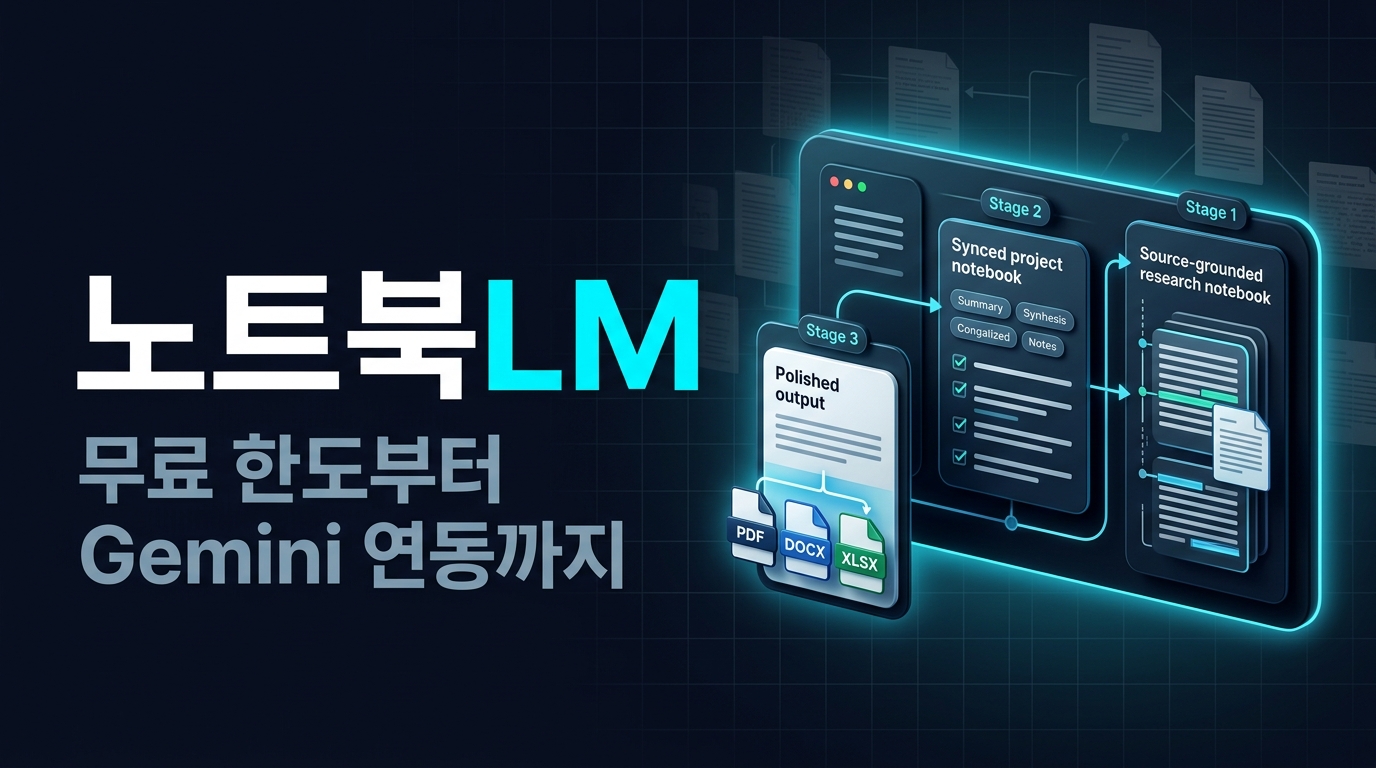
- In 2026, NotebookLM feels less like a generic chatbot and more like a source-grounded research studio. It is strongest when you want to read, cite, summarize, and turn a source pack into audio, video, or study-style outputs.
- The free tier is generous enough for personal research: 100 notebooks, 50 sources per notebook, and 50 chats per day. But frequent Deep Research runs, repeated audio or video generation, and larger workspaces push you toward an upgrade surprisingly quickly.
- The most practical flow right now is to use NotebookLM for source gathering and evidence extraction, then move into Gemini Notebooks or Gemini file generation for the final document, spreadsheet, PDF, or slide output.
목차
- What is NotebookLM best at?
- How useful is the free tier really?
- What is the difference between NotebookLM and Gemini Notebooks?
- What workflow works best from research to document output?
- When should you actually turn on Deep Research?
- What file types can you upload, and what outputs can you create?
- What should you watch out for around privacy and sharing?
- How does it compare with ChatGPT Projects and Claude Projects?
- Who actually needs a paid upgrade?
- FAQ: Common questions about NotebookLM
- Conclusion: What is the most practical NotebookLM workflow right now?
If we start with the shortest answer, as of May 5, 2026, NotebookLM is best for work that needs to think from sources rather than improvise from memory. It feels closer to a research tool that stays inside your PDFs, web pages, YouTube videos, audio files, and Google Docs than to a wide-open chatbot. And once Gemini Notebooks launched on April 8, 2026, followed by Gemini file generation on April 29, source collection and final deliverable creation started to feel like parts of one connected workflow (sources: Learn about NotebookLM, Try notebooks in Gemini, Generate files in Gemini).
This is not meant to be a fluffy “Google’s AI tool does everything now” post. NotebookLM is powerful, but the practical story depends on free-tier ceilings, age and account restrictions, the feedback-related privacy exception on consumer accounts, and the still-evolving rollout scope of Gemini Notebooks. It also matters that if you think in terms of a general project workspace, ChatGPT Projects and Claude Projects may still feel more familiar. So this guide focuses less on feature listing and more on when to use NotebookLM, when to hand work off to Gemini, and when another workspace may be the better fit.
This article prioritizes official help pages and official blog posts. On sensitive topics like free limits, upgrade differences, privacy, and file generation, it only makes strong claims where Google has documented them directly. On ambiguous topics like rollout scope, it stays conservative.
What is NotebookLM best at?
NotebookLM is not really a note app. Its real identity is a source-grounded thinking tool. Ask the same question to a general chatbot and you often get a blended answer from broad model memory or web context. Ask it in NotebookLM and the center of gravity shifts toward the sources you uploaded, usually with inline citations attached (sources: Learn about NotebookLM, NotebookLM Workspace overview).
It is a tool for collecting sources first and asking inside them
According to the official help docs, NotebookLM can take PDFs, websites, YouTube videos, audio files, Docs, and Slides, and it also supports flows for discovering and adding new sources. That means output quality depends more on source selection than on prompt cleverness alone (source: Learn about NotebookLM).
That is more useful in practice than many abstract RAG explanations. If you want a workspace that only answers from documents you actually read, or a place to bundle a long report, meeting notes, and related source pages, NotebookLM becomes very clear very quickly. That also overlaps with the broader “externalize knowledge structure” idea discussed in Beyond RAG: Karpathy’s LLM Wiki Pattern Explained (2026).
It does not stop at one text answer
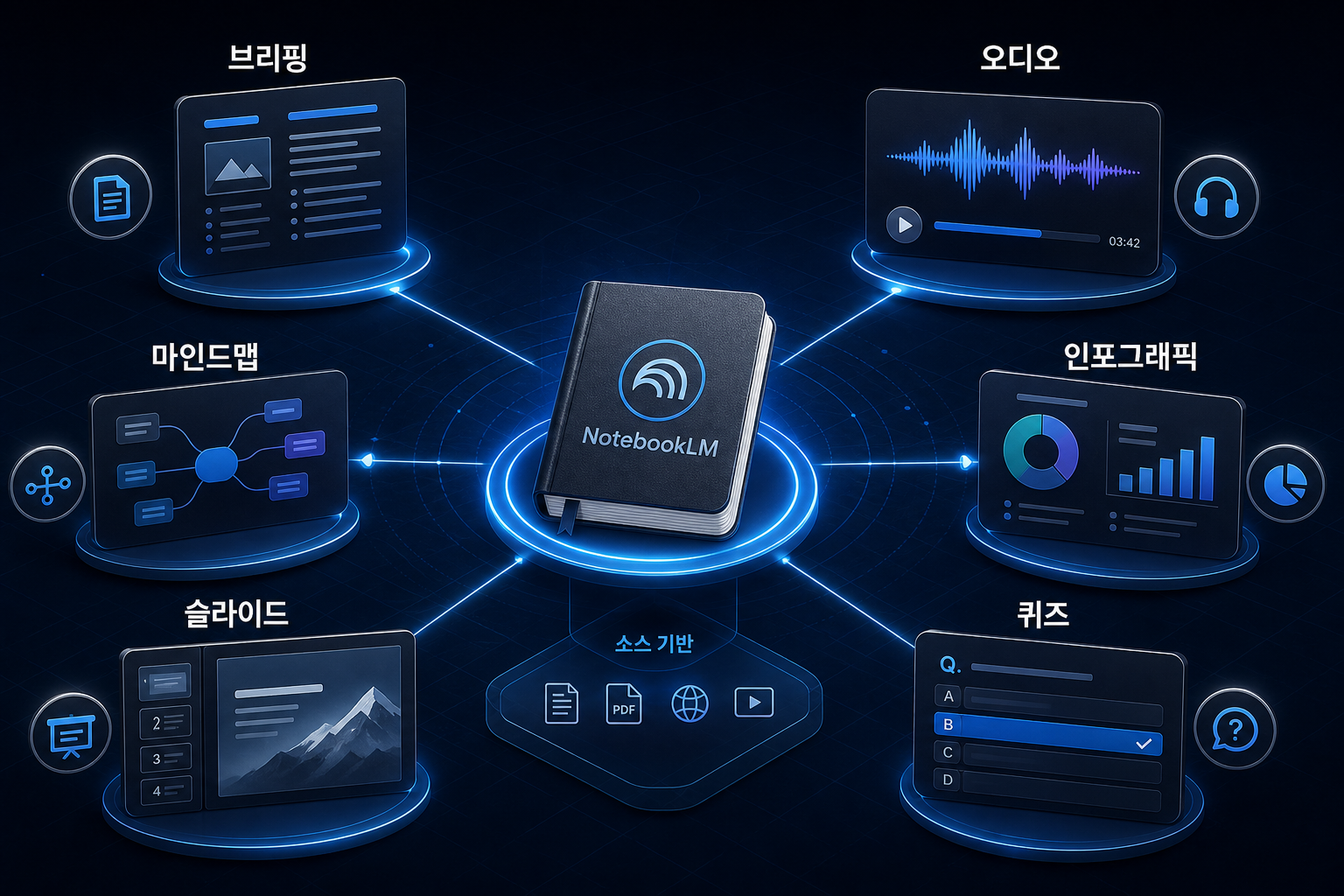
NotebookLM is not just chat. Google’s official product materials emphasize summaries, briefings, audio overviews, mind maps, flashcards, quizzes, infographics, and slides. On March 4, 2026, NotebookLM also added Cinematic Video Overviews, which pushes it beyond reading assistance into presentation and learning-oriented output formats (sources: Learn about NotebookLM, Generate your own Cinematic Video Overviews in NotebookLM).
It is already practical for Korean-language users too
NotebookLM’s FAQ mentions more than 50 languages in some places, while the newer help documentation references more than 80. The number presentation differs, but the practical point is that Korean output is already usable. That said, NotebookLM is better understood as “a tool that reads sources and explains them in Korean” than as “a tool that translates your whole source base into Korean automatically” (sources: Frequently asked questions, Learn about NotebookLM).
So yes, you can ask in Korean and get solid Korean answers. But the best results still come from choosing strong sources and asking narrower questions. That lines up neatly with the bigger point in AI Apps Are Built with Harnesses, Not Prompts: better output comes from a better operating environment, not just from prettier prompts.
How useful is the free tier really?
A lot of articles describe NotebookLM as if it were simply “free.” The more accurate phrasing is “free to start, but with visible ceilings.” The standard free access tier is strong enough for a surprising amount of personal work, but if your research loop becomes more frequent, the limits show up quickly (sources: NotebookLM FAQ, Upgrade NotebookLM).
The free tier is more generous than many people expect
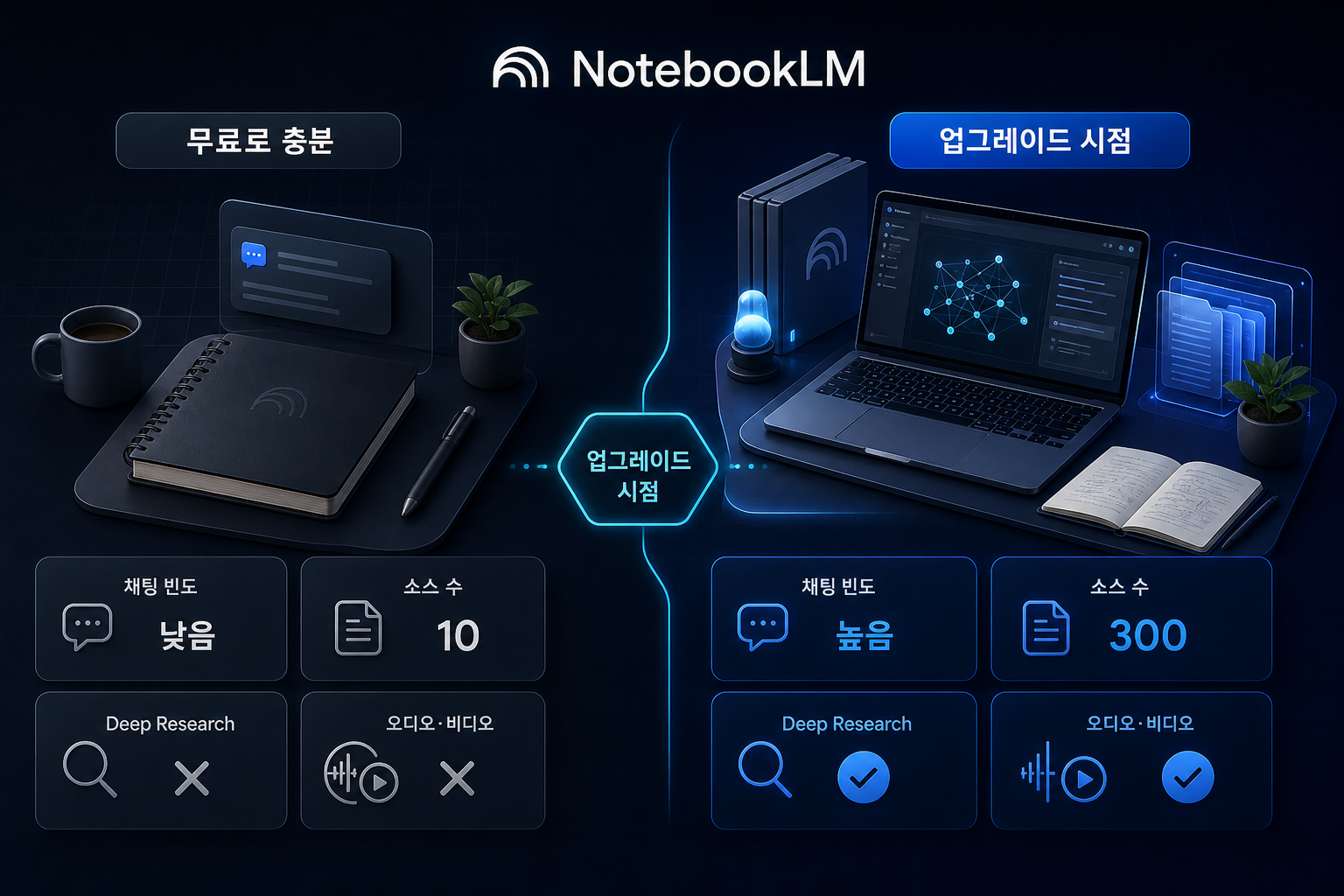
Based on the official FAQ, free users get 100 notebooks per user, 50 sources per notebook, and up to 500,000 words or 200MB per source. The daily cap is 50 chats and 3 audio generations. For someone running personal research notebooks made of papers, PDFs, websites, and meeting notes, that is already enough to be useful (source: NotebookLM FAQ).
Upgrades matter more for people who use it often than for people who just store more
The upgrade documentation lays out Standard, Plus, Pro, and Ultra tiers. The key difference is not just storage size. It is the recurring usage surface: chats, audio, video, and Deep Research allowances. That means the felt value of upgrading is much higher for someone who runs a daily research loop than for someone who opens NotebookLM occasionally (sources: Upgrade NotebookLM, Turn NotebookLM on or off for users).
| Item | Standard | Plus | Pro | Ultra |
|---|---|---|---|---|
| Notebooks | 100 | 200 | 500 | 500 |
| Sources per notebook | 50 | 100 | 300 | 600 |
| Daily chats | 50 | 200 | 500 | 5,000 |
| Daily audio overviews | 3 | 6 | 20 | 200 |
| Daily video overviews | 3 | 6 | 20 | 200 |
| Deep Research | Limited | Small allocation | Expanded | Heavily expanded |
”Completely free” is a misleading shortcut
The free tier is genuinely strong, but NotebookLM in 2026 clearly has paid expansion zones: more sources, more chat volume, more video and audio generations, Data Tables, and richer sharing or advanced workspace use. So from an SEO perspective, “free” may get clicks, but in the body of the article it is more helpful to say free to start, with clear upgrade triggers.
What is the difference between NotebookLM and Gemini Notebooks?
On April 8, 2026, Google introduced Notebooks inside the Gemini app. That confused a lot of people. The most accurate answer to “did NotebookLM just move into Gemini?” is something like: not fully, but the two products have started sharing project context much more directly (source: Try notebooks in Gemini).
NotebookLM feels like a research lab, Gemini Notebooks like a project desk
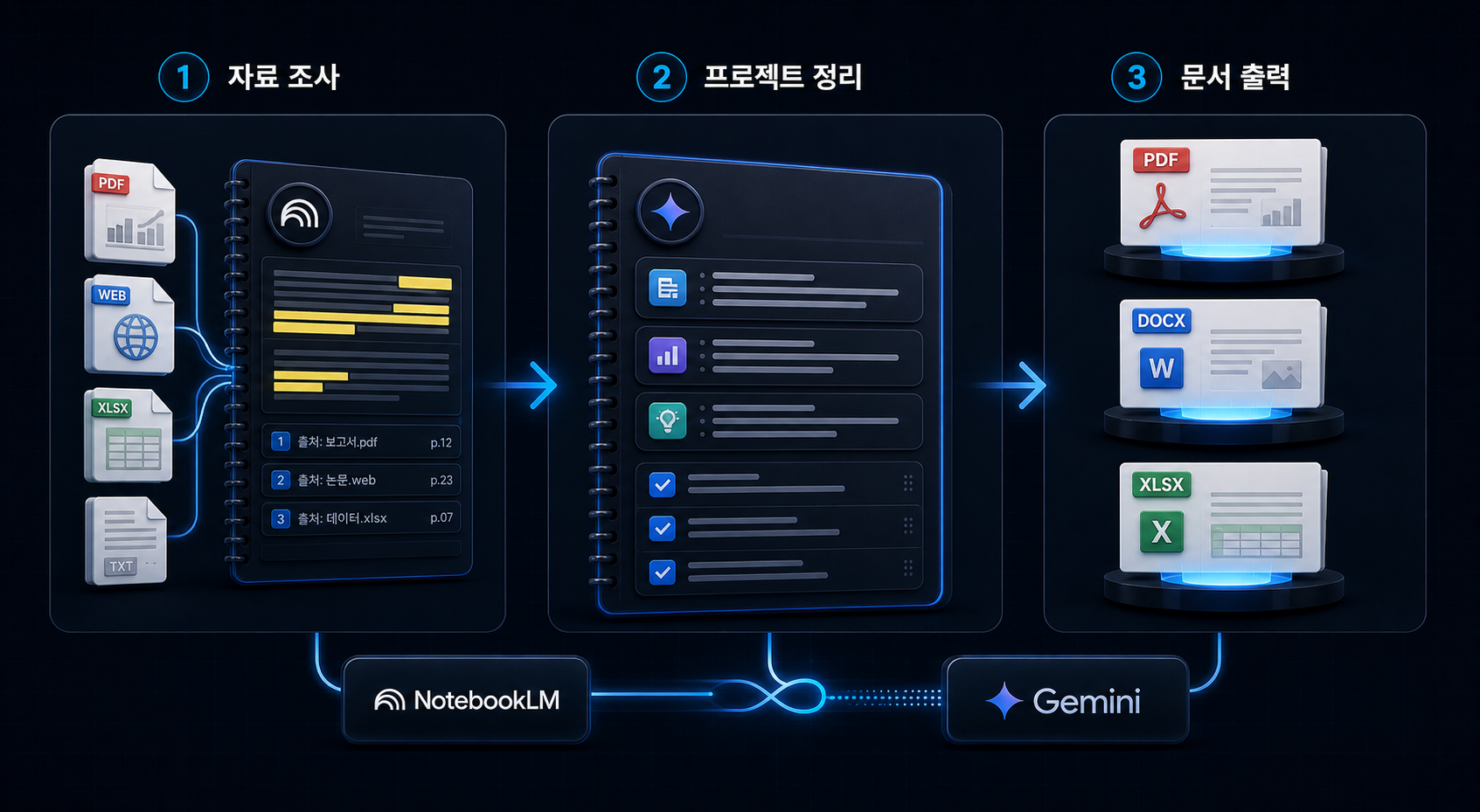
In Google’s own framing, Gemini Notebooks are project spaces that organize conversations and files together. Sources placed there can sync with NotebookLM, and source packs started in NotebookLM can carry forward into Gemini workflows. So if NotebookLM is where you read and organize material, Gemini Notebooks feel more like the place where you turn that material into working deliverables (source: Try notebooks in Gemini).
Gemini is much more direct when it comes to file output
On April 29, 2026, Google announced that Gemini could directly generate and export PDFs, DOCX, XLSX, Docs, Sheets, Slides, and Markdown. That update makes the workflow much more practical: gather evidence and shape conclusions in NotebookLM, then push them into Gemini for the report, proposal, spreadsheet draft, or meeting handoff file you actually need (source: Generate files in Gemini).
The rollout scope still needs to be read conservatively
One caution matters here. Google’s April 8, 2026 announcement said Gemini Notebooks were launching first on the web for AI Ultra, Pro, and Plus subscribers, with later expansion to free users and mobile. That means it is safer not to say “every free user already has everything” unless a newer official update confirms it. By contrast, the April 29 file generation update explicitly says it is rolling out to Gemini app users worldwide (sources: Try notebooks in Gemini, Generate files in Gemini).
Interestingly, independent hands-on coverage lands in a similar place. Tom’s Guide described NotebookLM as the better tool for source-based research and Gemini Notebooks as the more natural place for project progression and organization. That makes the distinction feel like more than just marketing language (source: Tom’s Guide).
Android Central also reported in early May 2026 that more advanced Gemini organization features were widening toward free users. But that kind of reporting is still better treated as a supporting signal than as the primary rollout source (source: Android Central).
| Question | NotebookLM | Gemini Notebooks | Gemini file generation |
|---|---|---|---|
| Core role | Source-grounded analysis and organization | Project context continuity | Final document and file output |
| Best moment | When you need to read sources and answer with evidence | When multiple conversations and files need to stay under one project | When you need a ready PDF, DOCX, XLSX, or Slides file |
| Main caution | It loses some advantage if used like a vague general chatbot | Official rollout scope still needs checking | Good output still depends on good sources and good prompts |
What workflow works best from research to document output?
The smartest way to use NotebookLM and Gemini is not to force them into a competition. It is to split their roles. In practice, the dividing line becomes surprisingly clear: NotebookLM for research and evidence, Gemini for formatting and delivery.
Step 1 is gathering the source pack inside NotebookLM
Start by dropping in the core material: PDFs, web pages, YouTube videos, audio files, Docs, and related documents. The important thing is not just quantity. It is perspective diversity. If you only upload vendor material, the answer will sound like the vendor. Mixing official docs, independent reviews, and real-world examples reduces that source gravity.
Step 2 is narrowing the question until evidence becomes usable
Strong NotebookLM prompts are not vague requests like “explain this.” They are narrower and decision-shaped, like “make me a table that only compares free limits and privacy exceptions from these documents.” If you want to get better at source-grounded workflows in general, the discipline in Cut Claude Code Tokens 71x with Graphify: Hands-On Guide (2026) is useful here too: break large information spaces into smaller structured questions.
Step 3 is using Gemini to shape the final output
Once NotebookLM has produced the conclusions, evidence, and useful bullet structure, move into Gemini Notebooks or standard Gemini chat to generate the actual document, PDF, table, or slide output. NotebookLM is the research aide. Gemini is the packaging and delivery layer. That again lines up with the broader harness point in AI Apps Are Built with Harnesses, Not Prompts: quality depends less on raw model cleverness than on the execution loop you build around it.
When should you actually turn on Deep Research?
NotebookLM’s Deep Research works less like a fancy summarizer and more like a web discovery plus report generation loop that feeds new material back into the notebook. That makes it more valuable in the early stage of a topic, before your source pack is already mature.
The official launch date was November 13, 2025
Google announced Deep Research for NotebookLM on November 13, 2025, along with wider source-type support. From that point on, NotebookLM stopped being only an upload-first notebook and became something closer to a loop: web research, report generation, then re-ingestion into the notebook itself (source: NotebookLM Deep Research and more sources).
It is strongest when you do not yet know which sources matter
Deep Research can still help organize topics you already know. But the higher-value use case is earlier: when you do not yet know where to start. Market scans, competitor mapping, and onboarding into a messy technical subject are all strong cases because the main difficulty is still source discovery.
Free users should treat it as a strategic button, not a casual button
The upgrade docs make it clear that Deep Research allowances differ substantially by tier. Free access gets only a small experimental amount, while the upper tiers scale up quickly. So if you are on the free plan, it is smarter to think of Deep Research as a “use when I need a big first sweep” button rather than an “always click this” button (source: Upgrade NotebookLM).
What file types can you upload, and what outputs can you create?
Most readers looking for a NotebookLM guide end up asking two practical questions: what can I put in, and what can I get out? By 2026, the broader NotebookLM and Gemini ecosystem has expanded meaningfully on both sides.
Upload support now feels closer to a document vault
Taken together, the official help docs and the November 2025 Deep Research update show NotebookLM handling PDFs, websites, YouTube videos, audio, Docs, and Slides, while also expanding into .docx, Sheets, images, and linked Drive files. That makes it much easier to treat it like a real research repository instead of a one-off chat context (sources: Learn about NotebookLM, NotebookLM Deep Research and more sources).
Gemini goes wider on conventional file output
NotebookLM itself is strongest at briefings, mind maps, audio, video, slides, and quiz-style learning outputs. Gemini is stronger at conventional business-document outputs like PDF, DOCX, XLSX, Docs, Sheets, Slides, CSV, and Markdown. So the cleanest model is not “one tool does everything,” but “NotebookLM for research, Gemini for deliverables” (sources: Learn about NotebookLM, Generate files in Gemini).
The source limits are generous, but not infinite
The cap of 500,000 words or 200MB per source is large, but not large enough to dump a whole corporate wiki into one notebook without thought. Some copy-protected PDFs can also fail to upload. In practice, dividing notebooks by purpose works better than trying to throw everything into one giant bucket (source: NotebookLM FAQ).
What should you watch out for around privacy and sharing?
If you want to use NotebookLM for work, the first serious question is not output quality. It is the data policy. And the rules differ meaningfully between consumer accounts and Workspace or Education accounts.
Consumer accounts should be understood as “protected by default, with a feedback exception”
Google’s help docs say NotebookLM data is not used for model training by default. But the same documentation also notes that if a user submits feedback, the full interaction context can be reviewed, including the question, uploads, and responses. If you leave that exception out and say “your data is never used,” you are overstating the protection (source: Learn about NotebookLM).
If you are handling sensitive documents on a personal Gmail account, it is worth understanding what can travel with feedback before you ever click the feedback button. If you are using a company or school Workspace account, the protection model is much stricter.
Workspace and Education are materially more conservative
Google’s upgrade help and Workspace admin docs say that for business and school accounts, uploads, prompts, and model responses are not used for human review or model training. Even feedback does not create the same exception. So for internal documents, class materials, or protected organizational information, Workspace is much clearer than a personal consumer account (sources: Upgrade NotebookLM, Turn NotebookLM on or off for users).
Sharing behavior also depends on account type
NotebookLM supports public notebooks and sharing flows, but not every account gets the same surface. Google’s April 2026 Gemini Notebooks announcement explicitly said that some notebook capabilities were not immediately available for under-18 users, Workspace users, or Education users in the same way. So if your workflow depends on sharing, check the account type and org policy first (sources: Try notebooks in Gemini, Learn about NotebookLM).
How does it compare with ChatGPT Projects and Claude Projects?
A lot of people curious about NotebookLM already know ChatGPT Projects or Claude Projects. The tools overlap, but the center of gravity is not the same.
ChatGPT Projects are stronger as general project context containers
According to OpenAI’s help docs, ChatGPT Projects are spaces that bundle related chats, files, and instructions so you can keep working within one shared context. That is great for product planning, drafting, and repeated collaborative work. But it does not foreground source-citation behavior in the same way NotebookLM does (source: Using projects in ChatGPT).
Claude Projects are closer to long-running knowledge and chat continuity
Anthropic describes Claude Projects as spaces that keep chats, documents, and user instructions together. Again, that is useful for persistent work, but it is not primarily built as a source-grounded research tool that turns uploaded material into many learning-style outputs with visible evidence references (source: What are Projects?).
NotebookLM is the clearest when evidence from documents is the main job
Put side by side, ChatGPT Projects and Claude Projects feel more like general project workspaces, while NotebookLM feels more like a research workspace. So if your job is product planning and iterative drafting, ChatGPT or Claude may still feel more natural. If your job is reading a pack of papers, reports, meeting notes, or documentation and producing a summary that stays grounded, NotebookLM is often the better fit.
OpenAI and Anthropic both describe their project features mainly around context continuity. NotebookLM’s official docs emphasize source-grounded answers and studio-style outputs much more directly. So the real decision point is not model preference. It is work type (sources: Using projects in ChatGPT, What are Projects?, Learn about NotebookLM).
| Question | NotebookLM | ChatGPT Projects | Claude Projects |
|---|---|---|---|
| Core philosophy | Source-grounded research | Project-level chat and file context | Project-level knowledge and instruction continuity |
| Strength | Inline citations, learning outputs, document-centered reasoning | General drafting and repeated collaboration | Long-running project context and document-based chats |
| Weakness | Less comfortable as a broad all-purpose chatbot | Source grounding is less front-and-center than NotebookLM | Not primarily a dedicated evidence-driven research tool |
| Best use case | Papers, reports, meeting notes, and source packs | Planning docs, messaging, and general project work | Long-running projects that need persistent document context |
Who actually needs a paid upgrade?
NotebookLM is already a very strong place to start for free. But some signals make the upgrade feel less optional and more time-saving.
Who can stay free for a long time
If your source count is modest and you use NotebookLM a few times a week for things like study notes, report summaries, or personal research, the free tier can be enough for quite a while. Fifty chats a day and three audio overviews already cover a lot of ordinary solo usage.
Who will feel the upgrade quickly
If you split one topic across many notebooks, run Deep Research frequently, repeatedly generate audio or video overviews, or rely on richer visual outputs and team sharing, the upgrade becomes much more tangible. In particular, jobs that repeatedly use video, Data Tables, Infographics, or Slide Decks can hit the free tier fairly fast (source: Upgrade NotebookLM).
It is better to decide by workload than by sticker price alone
Regional pricing, tax, and bundle context can change how the actual cost feels. So instead of asking only “how much is it?”, it is more practical to ask: how many times per day do I query, how many sources go into one notebook, and how often do I regenerate outputs?
And if you already live inside OpenAI or Anthropic project workflows, you do not need to migrate everything into NotebookLM. A hybrid setup is perfectly reasonable: keep the source-grounded research step in NotebookLM, and leave general writing or collaboration inside your existing Projects flow (sources: Using projects in ChatGPT, What are Projects?).
FAQ: Common questions about NotebookLM
Is NotebookLM completely free?
Are NotebookLM and Gemini Notebooks the same product?
Are my uploaded sources used for AI training?
What files can I upload?
Should I replace ChatGPT Projects or Claude Projects with NotebookLM right away?
Can students or minors use it?
Conclusion: What is the most practical NotebookLM workflow right now?
The most useful 2026 NotebookLM workflow is surprisingly simple: separate the reading phase from the deliverable phase. Use NotebookLM to gather sources, check evidence, and clarify the real questions. Then use Gemini to turn that material into a document, spreadsheet, slide deck, or PDF that someone can actually use.
Bottom line
NotebookLM shines when the main question is “what can I trust and summarize from these sources?” Gemini shines when the next question is “what file should this become?” Treating them as sequential tools rather than as one blended product is usually the more productive approach.
1. Organize the source pack first
Build a NotebookLM workspace with PDFs, web pages, videos, and documents that clearly define the evidence boundary.
2. Compress around decision-shaped questions
Ask only the questions that matter for real decisions, such as free-tier limits, privacy exceptions, or upgrade triggers.
3. Use Deep Research early, not automatically
Turn it on when you do not yet know which sources matter. Use it more selectively once the notebook is already rich.
4. Use Gemini for the final output
Move the structured conclusions into Gemini to generate a DOCX, PDF, XLSX, or Slides file you can use immediately.
5. Match the account to the sensitivity of the data
Understand the feedback exception on personal accounts and the stronger protections on Workspace accounts before uploading sensitive material.
If you read a lot of reports, papers, meeting notes, or product documents, NotebookLM starts paying for itself very quickly. If you mainly want free-flowing idea generation and open-ended conversation, ChatGPT Projects or Claude Projects may still feel more natural first.
Was this helpful?
One tap shapes what gets written next.
Recordly Review: A Free Screen Studio Alternative With Auto Zoom, GIF Export, and Korean UI
A hands-on Recordly review covering auto zoom, captions, cursor polish, webcam controls, extension support, current bugs, and where it stands against Screen Studio and Loom.
Read
HOP HWP Desktop App Guide 2026: Open HWP and HWPX on Mac, Windows, and Linux for Free
A practical guide to HOP, the free desktop app for opening HWP and HWPX files without Hancom. Covers download links, installation, PDF export, and how it differs from RHWP.
Read
What Is Vectorless RAG? Is PageIndex a Real RAG Alternative?
A current guide to why PageIndex says it can search long documents without vector databases or chunking, and how to read its pricing, MCP surface, FinanceBench claims, and real limits.
Read