Recordly Review: A Free Screen Studio Alternative With Auto Zoom, GIF Export, and Korean UI
A hands-on Recordly review covering auto zoom, captions, cursor polish, webcam controls, extension support, current bugs, and where it stands against Screen Studio and Loom.
Quick take
Start with this judgment
18 min readBottom line
A hands-on Recordly review covering auto zoom, captions, cursor polish, webcam controls, extension support, current bugs, and where it stands against Screen Studio and Loom.
- Best for
- Readers who need to solve a concrete workflow problem now
- What to check
- Recordly · screen recorder · Screen Studio alternative
- Watch out
- Pricing and features can change, so confirm with the official source too.
3 key points
- If you’re looking for a polished demo video tool like Screen Studio for free, Recordly is a good open source candidate to try first.
- Auto-zoom that follows the mouse, cursor correction, GIF export, local Whisper-based subtitles, Korean UI, and an initial expansion market are all included in one app.
- However, as of May 3, 2026, initial roughnesses such as webcam/audio sync, some export bugs, and Linux cursor hiding limitations still remain.
목차
- What kind of screen recording app is Recordly after all?
- Why is auto-zoom that follows your mouse so useful?
- How fast is the actual editing flow?
- Are subtitles and Korean language support actually usable?
- How much detail can you control with the webcam and cursor?
- Why does the future seem big even though there are only 4 expansions?
- Screen Studio, where does it stand compared to Loom?
- What limitations and bugs are you seeing now?
- So is it worth recommending now?
- FAQ
- conclusion
I want to make a good-looking demo video like Screen Studio, but honestly, the process of taking a zoom keyframe in Premiere and adjusting the cursor separately every time is annoying. Recordly is an app aimed at that annoying problem. To conclude from my own experience, it is close to the cheapest tool to upgrade “Original screen recording” to “Presentable demo video”. However, since it is still a project where speed comes before stability, a bit of grace is needed to completely switch to the main tool based on only a good first impression.
1. What kind of screen recording app is Recordly after all?
Recordly is not just a screen capture app. The official introduction text is closer to “professional motion animations for product demos, walkthroughs and more” than to “screen recorder.” In other words, recording is the starting point and the main body is the editor (Source: Recordly, README).
Free, but not unconditionally public domain
The official site describes it as “fully free and open-source, with no paywalls or hidden limits.” This sentence is correct from a usability perspective. There are no watermarks, payment walls, or feature locks. However, since the license is AGPL 3.0, there is an obligation to disclose the source when modifying the code and running it as a service. In addition, it is written in the LICENSE that the name and branding of Recordly must not be used as is (Source: Recordly, LICENSE.md).
As of May 3, 2026, it is growing quickly.
As of May 3, 2026, the GitHub repository recorded 11,862 stars and 846 forks, and the latest official release is v1.2.1, which was uploaded on April 28, 2026. Considering that the repository was created on March 12, 2026, the growth rate is quite rapid. Rather than saying “A screen recording app suddenly came to mind.”, it is closer to the result of pinpointing the necessary problem (Source: Recordly GitHub, v1.2.1 release).
The support platform is also wider than expected
The scope of support based on README is macOS 14+, Windows 10 build 19041+, and modern Linux. macOS uses ScreenCaptureKit, Windows uses WGC + WASAPI, and Linux uses Electron capture. Here, Recordly’s personality is already revealed. It is not a “Polished toy for Mac only”, but a cross-platform app that aims for Screen Studio-like results (Source: README).
This article evaluates Recordly not as a typical meeting recording app, but as a video tool that explains the mouse movement itself, such as “Blog post introduction, product demo, onboarding video.” Therefore, more emphasis is placed on auto-zooming, cursor correction, background framing, and GIF export rather than sharing links.
2. Why is auto-zoom that follows the mouse so useful?
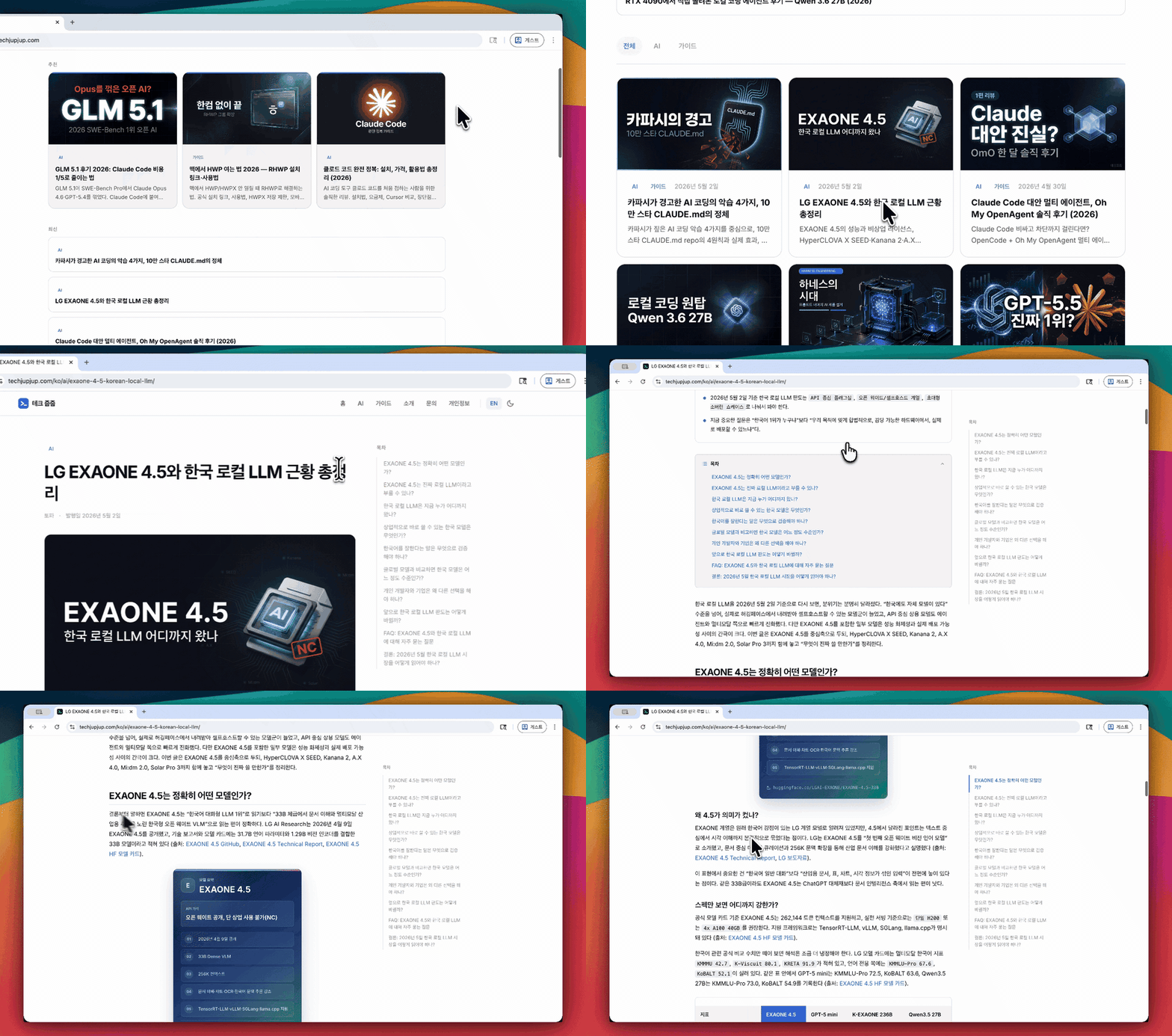
This was the first point I wanted to write down after I tried it myself. The automatic zoom that follows the mouse is much more explanation-friendly than you might think.
There are moments when the cursor becomes the narration.
For tutorials, blog post walkthroughs, and changelog introduction videos, the cursor is usually the narration. “Click here, read down here, and compare here” are all delivered to the mouse. At this time, if you only record the original screen, it is easy for the viewer to lose track of where to look.
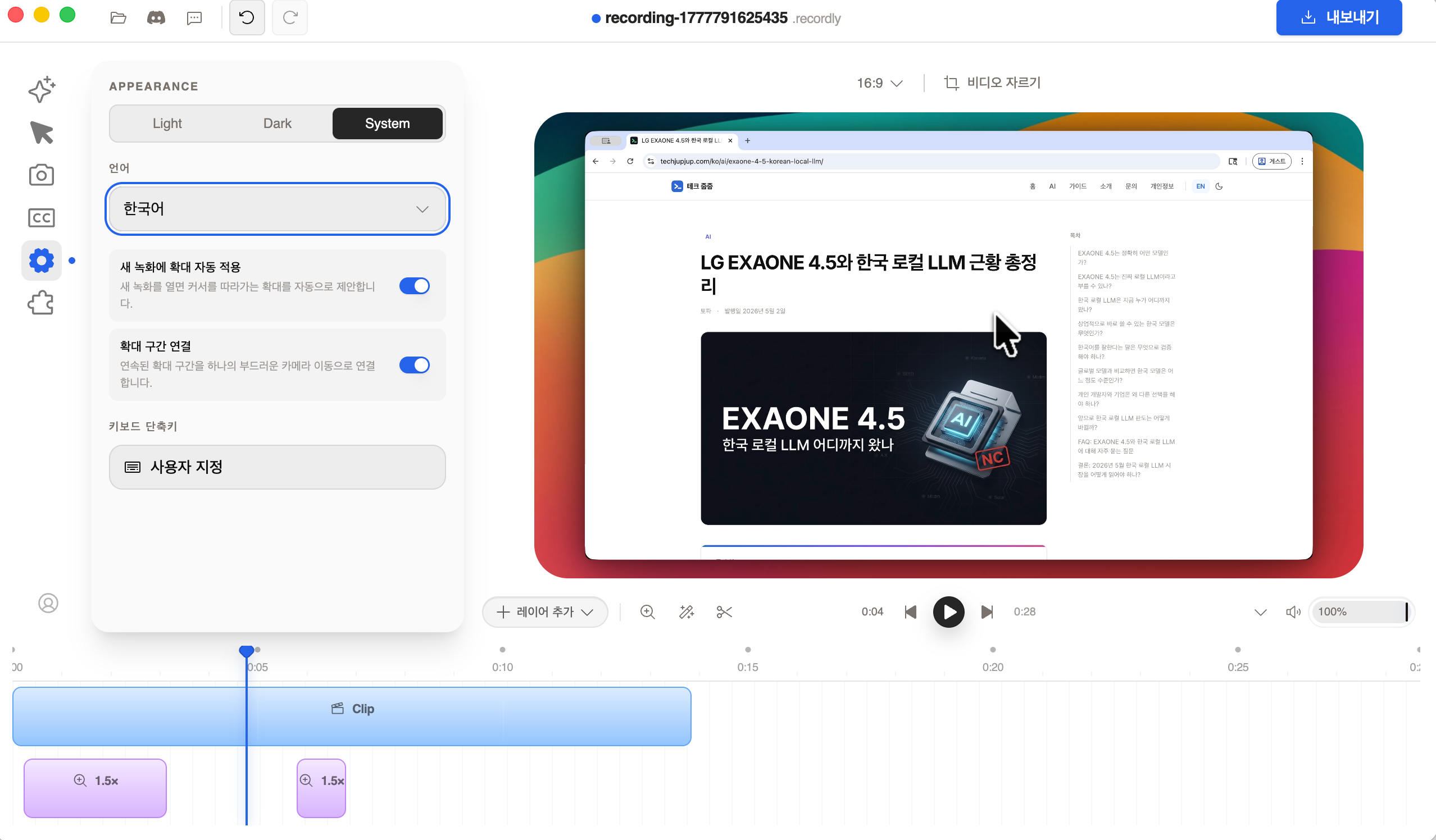
Recordly solves this problem with auto-scaling suggestions. In the settings, you can see separate toggles such as “Automatically apply zoom to new recordings” and “Connecting consecutive extended sections.” In other words, magnification is not a simple effect, but part of the basic workflow.
Much lighter than manual keyframing
This is actually the reason why the Screen Studio series of tools are loved. The moment a person takes pictures of each zoom, the cost of editing even a short demo video increases. Conversely, Recordly installs auto-zooming first, and fixes it manually later if necessary. The one with better default values wins in practical usability.
Disadvantages must also be included.
Auto-zooming isn’t always perfect. Open issue #397 registered on April 30, 2026 points out a problem in which auto-zoom frames based on the background rather than the video body when changing the ratio from 16:9 to 1:1. So rather than saying “It just takes care of it and makes it look pretty”, it is more accurate to say that the default value is good but the final inspection is still necessary (Source: issue #397).
3. How fast is the actual editing flow?
Recordly’s strengths are more visible in the editing screen that appears immediately after recording than in the record button.
Background, frame, and timeline are attached to one screen.
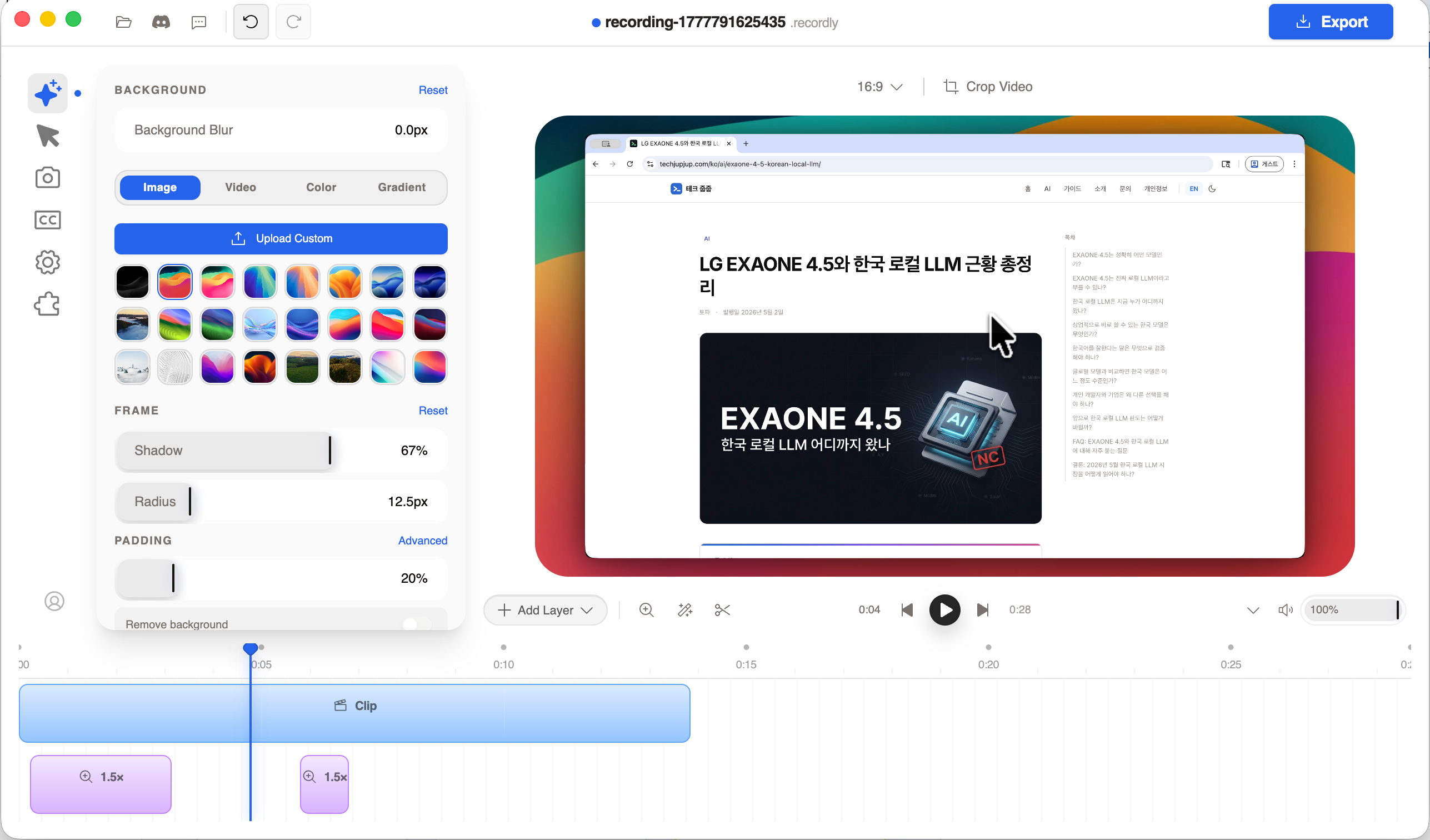
If you look at the background panel, it is divided into image/video/color/gradient tabs, and you can directly adjust blur, shadow, radius, and padding. It is a structure that reduces the effort of compositing browser frames separately with Canva or Figma.
The timeline is also more serious than expected.
Based on README, it supports trim, manual zoom, speed region, annotation, extra audio region, crop, aspect ratio preset, and saving/reopening .recordly project. It is not just “An app that adds a few automatic effects”, but is closer to an editor for short demo videos (Source: README).
GIF export is surprisingly important
If you only think about video, MP4 export is the same, but in practice, GIF is often used. Short, repeating GIFs are more convenient for changelogs, community sharing, document insertion, and issue reporting. Recordly officially supports both MP4 and GIF, and even has separate GIF frame rate, looping, and size presets. This is a very real advantage for blog or document-oriented users (Source: README).
4. Are subtitles and Korean language support actually usable?
This part was more enjoyable than I expected. What the official website puts on the front page is auto-zoom and cursor polish, but if you look at the actual UI, there are traces of a lot of effort put into subtitles and localization.
Subtitles are closer to local type than cloud type.
Based on the code, Recordly downloads the Whisper small model and then extracts the audio locally to create a subtitle cue. WHISPER_MODEL_DOWNLOAD_URL points to ggml-small.bin of Hugging Face, and the caption generate logic separates the voice with ffmpeg and then calls the Whisper executable file. In other words, there is “Create subtitles”, but it is closer to using a local runtime rather than a structure thrown into the SaaS subtitle API (Source: constants.ts, generate.ts).
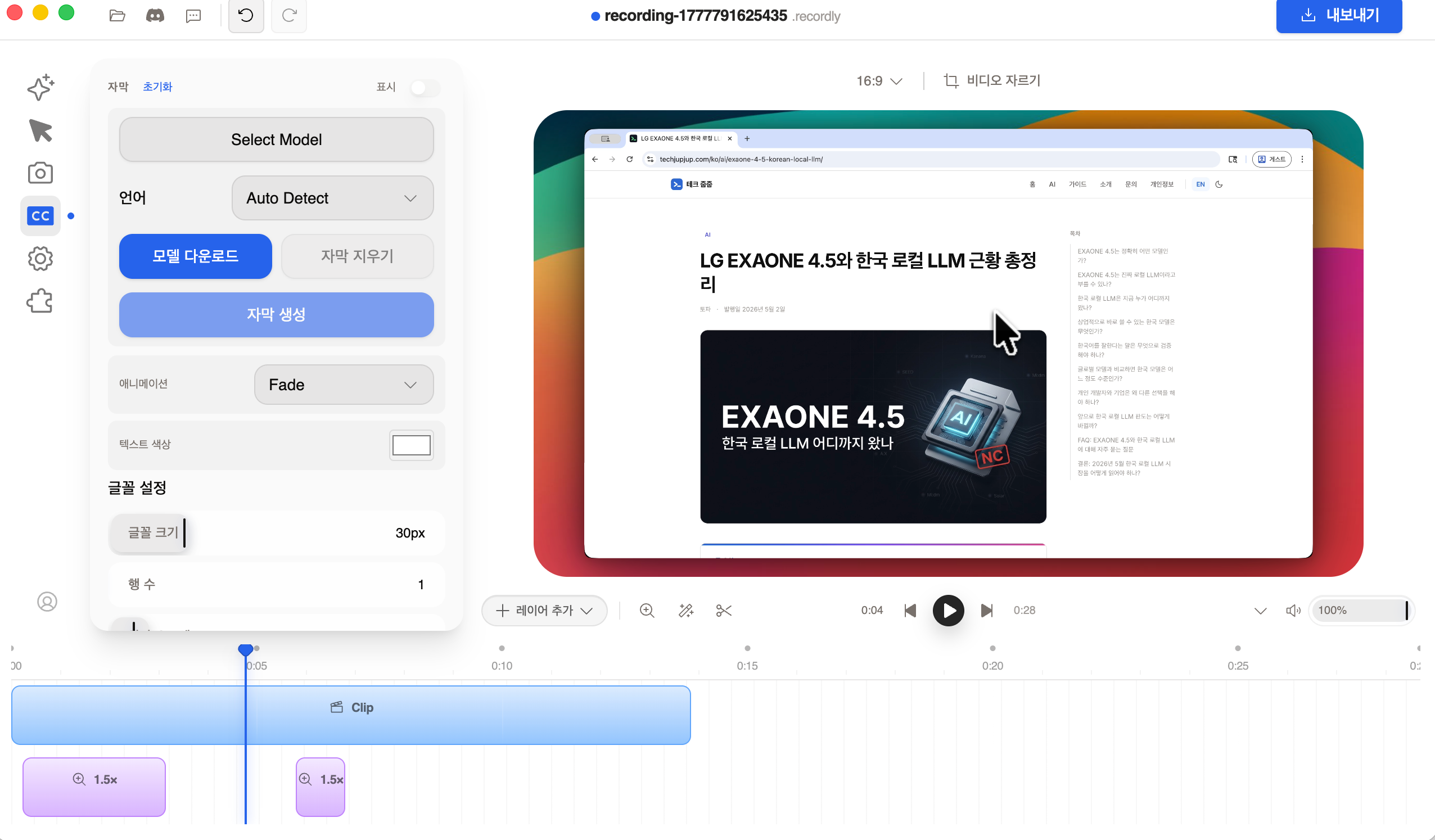
Korean UI looks real
The list of supported languages includes ko, and even in actual local screenshots, the settings, subtitles, cursor, and webcam panels are well translated into Korean. It is important that “Korean language support” is not just an introductory text, but the translation is spread throughout the actual editing screen (Source: i18n config).
However, you should not exaggerate the completeness of the subtitles.
Local Whisper is good in terms of privacy and cost, but it is difficult to expect it to automatically cleanly correct sentences and separate speakers like a large commercial subtitle SaaS. It is better to view the subtitles of this app as an aid to presentation-type demo videos.
5. How much detail can I touch with the webcam and cursor?
The reason Recordly feels particularly like a “demo video app” is because the cursor and webcam are treated as the main presentation layer rather than as an auxiliary layer.
Cursor correction is quite detailed.
README lists cursor size, smoothing, motion blur, click bounce, sway, loop mode, and macOS-style assets. You can even adjust cursor style presets, size, compensation, motion blur, click bounce, and shake in the actual panel. These apps usually end with just a cursor highlight, but Recordly treats the cursor almost like a character (Source: README).
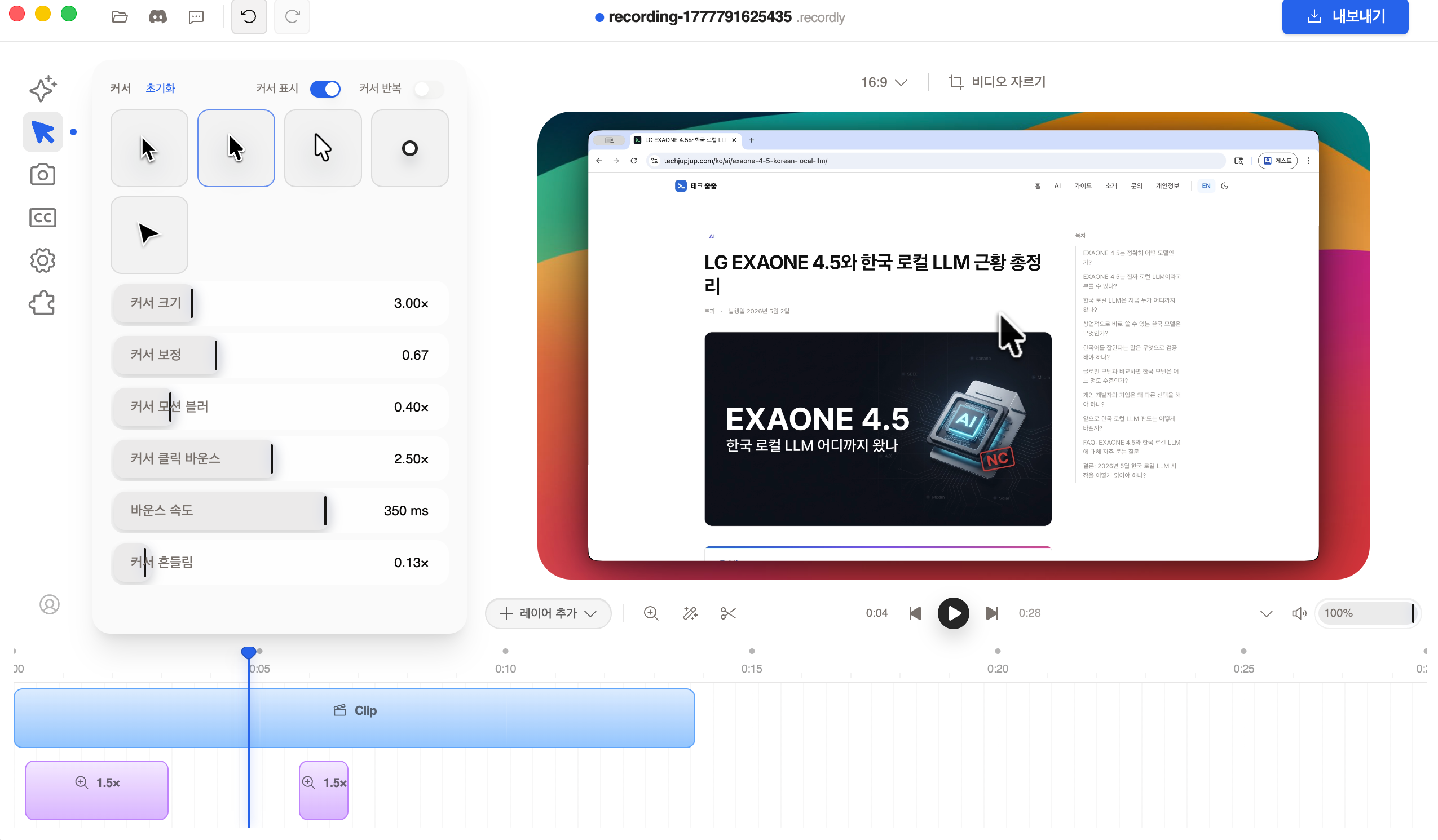
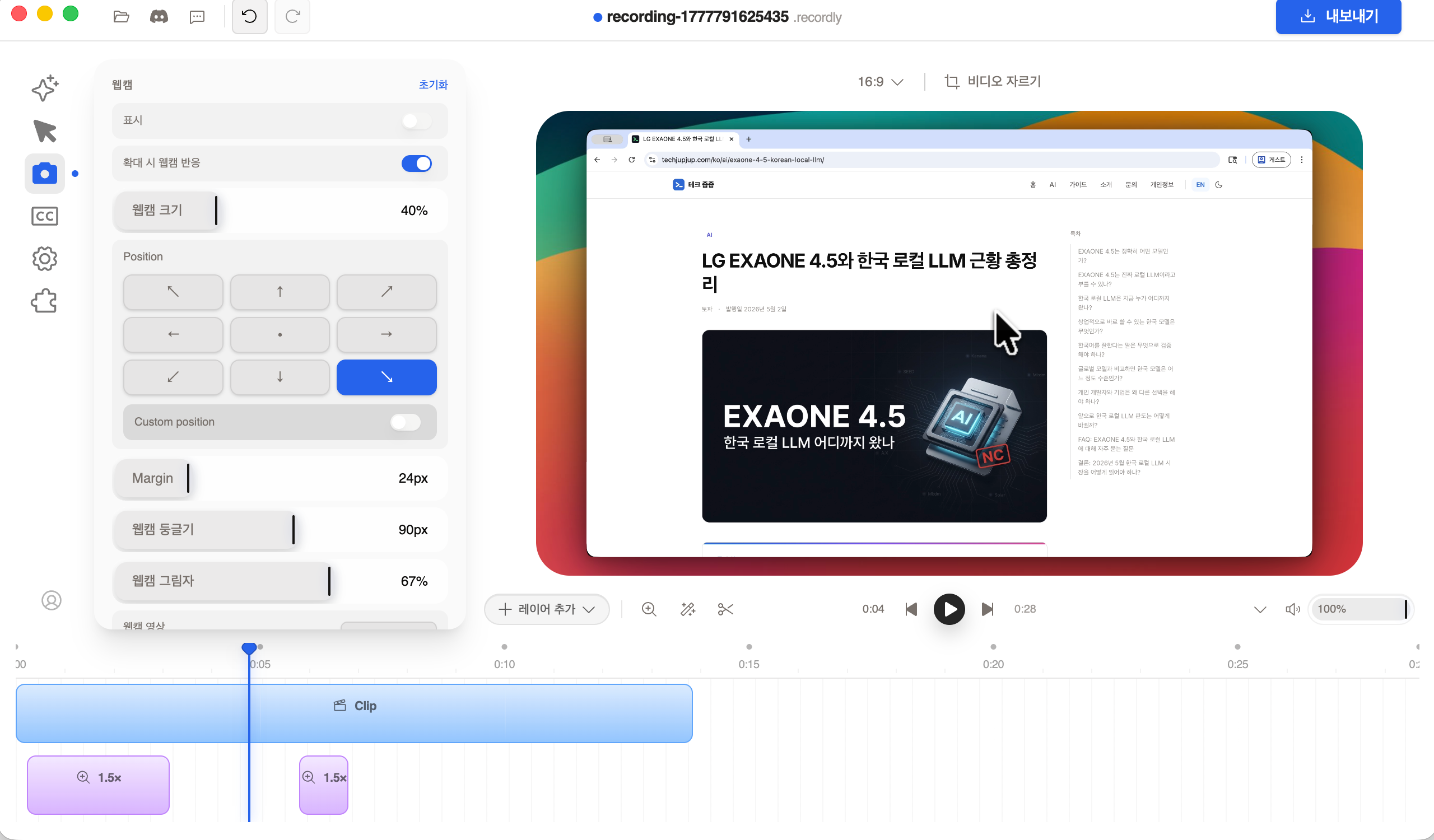
The webcam is also tuned to the talking-head video.
Webcam overlays include size, position, margin, roundness, shadow, as well as zoom-reactive scaling. This means that when the screen is enlarged, the webcam is also balanced. The function was designed with consideration for tutorials/lectures/onboarding videos rather than simple meeting recording (Source: README).
6. Why does the future seem big even though there are only 4 expansions?
There aren’t a lot of expansion numbers right now. But the structure itself is pretty well established.
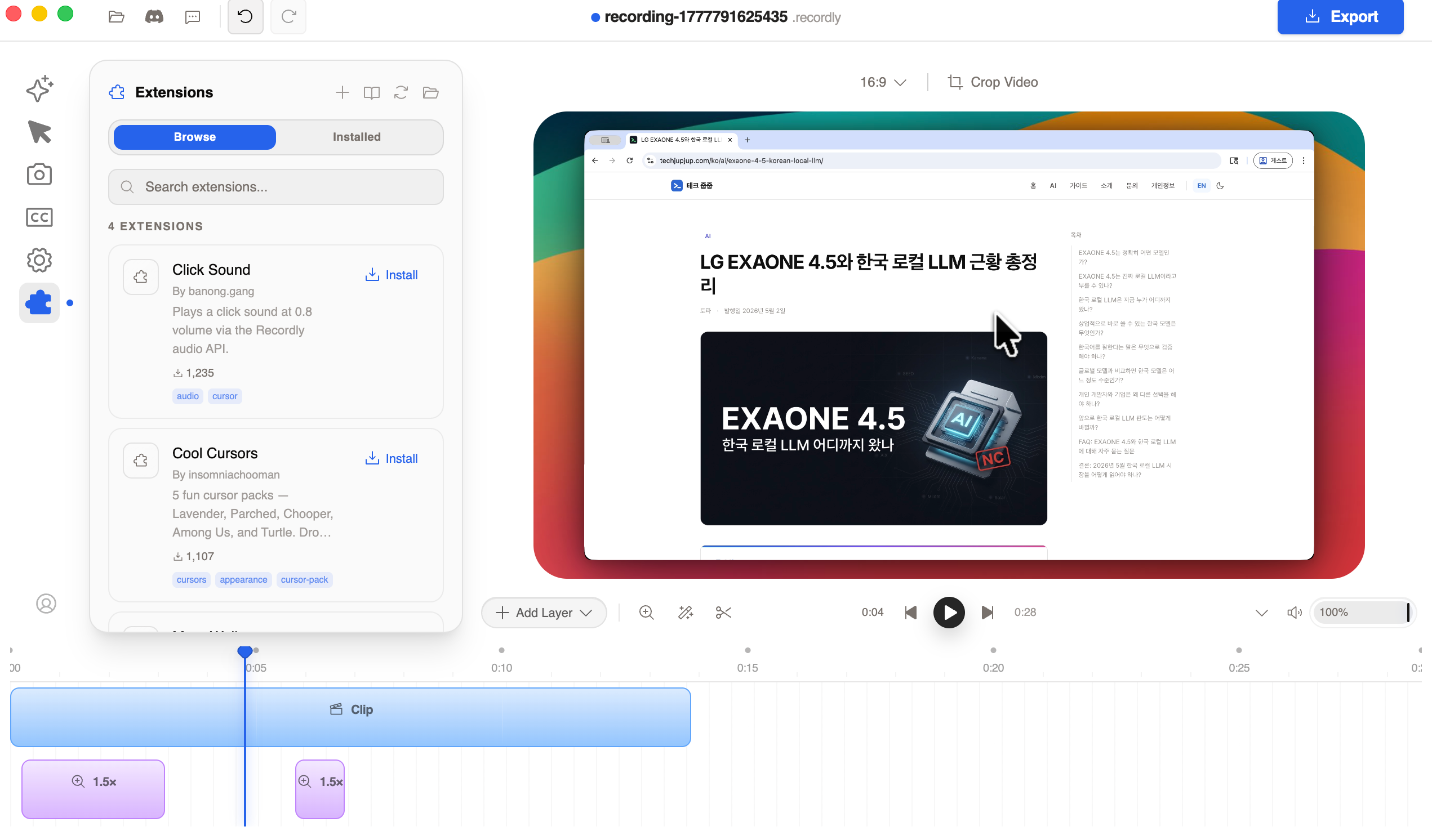
As of May 3, 2026, there are four approved extensions.
Based on the Marketplace API, there are currently four extensions with approved status: Click Sound, Cool Cursors, More Wallpapers, and macOS Sequoia Cursors. It’s hard to say there are many. Rather, to be honest, it is currently an early beta ecosystem (Source: Recordly Marketplace API).
What’s more important is where you put it rather than the number.
If you look at the extension document, the API surface including render hook, cursor effect, audio, timeline, UI panel, assets, and export lifecycle are already listed. In other words, it is not a “Skin system that adds some background” but an extension structure that actually inserts into the editing pipeline (Source: Recordly Extensions docs, EXTENSIONS.md).
So I’m looking forward to it, but it’s still in the future tense.
From the user’s perspective, the value that can be felt right now is click sound, cursor pack, and wallpaper pack. However, looking at the direction of the tool alone, “A structure in which the community fills in production functions that are difficult to add alone” is definitely attractive. Therefore, it is fair to say that the current status is an initial platform with potential rather than a complete ecosystem.
7. Screen Studio, where does it stand compared to Loom?
The most common mistake when evaluating Recordly is to place it on the same axis as Loom or, conversely, to see it as the exact same thing as Screen Studio. In reality, it’s closer to a free alternative that stands in the middle.
The closest comparison is Screen Studio.
The official site also directly describes Recordly as a “free alternative to Screen Studio.” Keywords such as auto-zoom, silky cursor, and beautiful backgrounds are almost on the same level. The difference is clear. Screen Studio’s strengths are commercial completeness and Mac optimization, while Recordly’s strengths are free/open source and Windows/Linux extensibility (Source: Recordly, Screen Studio).
Loom is more for sharing, Recordly is more for production.
At its core, Loom is an asynchronous communication tool that posts a link immediately after recording. On the other hand, Recordly is based on the premise of local export and puts more effort into producing good-looking motion polish. So, “Create a short but attractive demo” is more appropriate than “Send meeting link quickly” (Source: What is Loom).
| item | Recordly | Screen Studio | Loom |
|---|---|---|---|
| core purpose | Create a polished demo video for free | Polished demo video to commercial perfection | Fast screen sharing and asynchronous communication |
| price direction | Free + Open Source | Paid | Premium/Collaborative |
| operating system | macOS·Windows·Linux | macOS-centric | Desktop + Web/Extension Focused |
| strength | Auto zoom, cursor correction, GIF, Korean UI | Stability and quality of results | Instant link sharing and collaboration |
| weakness | Early bugs and platform differences | Paid + Mac Dependent | Visual polish is relatively weak |
8. What limitations and bugs do you see now?
From here on, it’s more important than praise. Recordly is still too rough to be fixed as the main tool just based on its pretty first impression.
There are restrictions depending on the operating system.
The README itself says it first. 14.0 or higher is recommended for macOS, 19041 or higher is recommended for Windows, and Linux comes with restrictions on PipeWire and cursor hiding. In particular, Linux notes that if you turn on the rendered cursor overlay, both the actual cursor and the style cursor can be visible (Source: README).
| item | macOS | Windows | Linux |
|---|---|---|---|
| minimum conditions | macOS 14+ | Windows 10 build 19041+ | modern distro + PipeWire recommended |
| Capture Strengths | ScreenCaptureKit | WGC + WASAPI | Basic Electron capture |
| Things to note | May be permission/environment sensitive | Older versions fallback capture | Cursor hiding not supported |
Don’t hide remaining issues in the release notes
The v1.2.0 release notes write that audio stability has been greatly improved, but leave a separate known issue called webcam footage can still drift slightly out of sync with audio. This is actually a good sign. Don’t pretend not to know the problem. At the same time, at this point, it also means that anyone who uses a presentation video including a webcam must review it once more (Source: v1.2.0 release).
If you look at the open issues, you can see that they are still tuning it.
Just looking at the issue opening in early May 2026 reveals its personality.
#400: Issue where exported video duration becomes shorter than actual recording#401: Apple ARM GPU uses 50% even when idle in edit/export screen#393: Cursor desync occurs in fallback when Native Windows capture fails.#407: Problem with annotation shortcut not working on Mac
In other words, Recordly is now closer to an up-and-comer that is pushing features quickly rather than “Completed without any problems” (Sources: #400, #401, #393, #407).
Recordly is not some kind of magic app that says “Just record and you will automatically get a perfect demo.” Although the default direction is very good, actual results will still vary depending on project length, OS, audio conditions, and whether or not a webcam is used.
9. So is it worth recommending now?
In short, it is “Recommended right now to the right people, not recommended by default to everyone.”
Someone worth using right now
- People who want to create a screen studio resolution but don’t want to pay for a paid app
- A person whose cursor is an explanation, such as a blog, changelog, onboarding, or tutorial video.
- People who share GIFs more often than MP4s
- People who are happy with the Korean UI and local subtitles
Who would be better off waiting for one or two more releases.
- Educational/sales video producers where webcam and audio sync are very important
- Users who want complete cursor hiding on Linux
- Users with fixed workflows who export dozens of deliverables every day
Pros
- + Completely free + open source, so the barrier to entry is low
- + Auto zoom and cursor correction definitely save time.
- + GIF export, Korean UI, and local subtitles are practically useful.
- + There is a market/expansion structure, so future expansion is visible.
Cons
- − Since it is an early project, export·sync·GPU issues remain.
- − Linux and older Windows have significant cursor limitations.
- − The expansion ecosystem is still in the early stages of 4 levels
- − It is not a collaboration tool that shares links instantly like Loom.
Similarly, if you want to see more reviews of open source tools that you have used yourself, How to open HWP on Mac 2026 — RHWP installation link and usage, App to open HWP on Mac 2026 — Installation and usage of free desktop HOP, and Claude Code alternative multi-agent, honest review of Oh My OpenAgent (2026) are also suitable.
10. FAQ
Is Recordly really completely free?
Is the Korean UI officially supported?
Are subtitles created by uploading them to a server?
Can it completely replace Screen Studio?
Is the extension worth using right now?
Can I switch to the main screen recording tool now?
11. Conclusion
one line judgment
Recordly is one of the most interesting free Screen Studio alternatives as of now. The key reason is that auto-zoom and cursor correction actually reduce explanation costs. However, it is not yet at the stage of unconditionally overturning completed commercial tools, but it is more accurate to view it as a rapidly growing open source prospect.
Rather than switching to the main tool from scratch, the fastest way is to create a short blog walkthrough of about a minute or a product demo with Recordly and then directly compare the export quality and editing time.
Start with one short demo
Select and record material that is 30 seconds to 1 minute long and can be explained by the cursor, such as a blog post, changelog, or settings screen.
Look at auto-zooming and GIF export first.
The difference in Recordly's experience is most evident in auto-zoom, cursor polish, and short GIF sharing.
People who use webcams and audio devices are inspected once more.
Regardless of the good first impression, it is currently safer to check the sync and export stability directly in your workflow before choosing it as the main tool.
Was this helpful?
One tap shapes what gets written next.
How to Use NotebookLM in 2026: Free Limits, Upgrade Triggers, and Gemini Workflow
A practical NotebookLM guide covering free limits, Deep Research, Gemini Notebooks, file generation, privacy caveats, and when to upgrade.
Read
HOP HWP Desktop App Guide 2026: Open HWP and HWPX on Mac, Windows, and Linux for Free
A practical guide to HOP, the free desktop app for opening HWP and HWPX files without Hancom. Covers download links, installation, PDF export, and how it differs from RHWP.
Read
What Is Vectorless RAG? Is PageIndex a Real RAG Alternative?
A current guide to why PageIndex says it can search long documents without vector databases or chunking, and how to read its pricing, MCP surface, FinanceBench claims, and real limits.
Read